The throttle
In Manual mode, every locomotive on the layout has a throttle on its card: it’s the main speed control. TrainPanel provides a modern, interactive interface designed for seamless touch screen model train control, allowing you to run your DCC layout easily from any mobile device, tablet, or desktop screen.
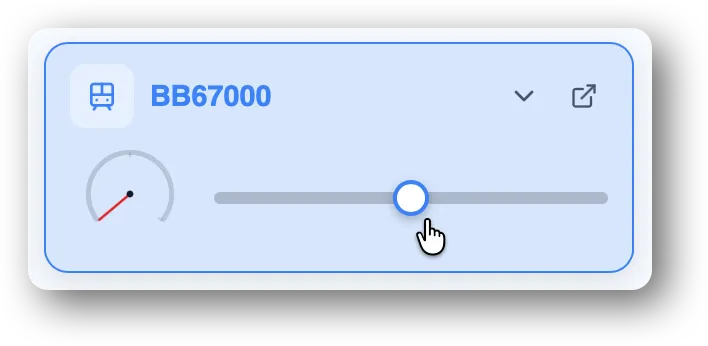
Move the throttle
- Drag the slider with the mouse.
- On a touch screen, drag with your finger.
The motion is immediate: the target speed changes as soon as you release the slider.
Displayed unit
The unit depends on the project’s Speed unit setting (see Project metadata):
- Percent — 0% to 100% of the locomotive maximum supeed.
- KmH — scale km/h (computed from the project scale and the loco calibration).
- MpH — miles per hour, same.
- Speed steps — directly the speed in DCC units.
You can switch the global unit at any time; throttles adapt.
Target speed vs actual speed
Two values coexist:
- Target speed — what you ask for.
- Current speed — the instantaneous locomotive speed, ramped toward the target via acceleration.
The slider shows the target speed. A complementary gauge (in the card) shows the current speed, which trails the target with a delay set by the acceleration parameter.
See Speed, acceleration, steps (coming soon).
Stopping
To stop the loco, bring the slider back to 0. The loco brakes according to its acceleration parameter (mm/s²).
You can also press the stop button.
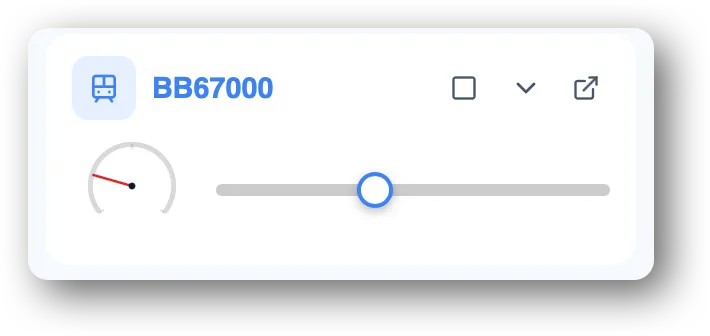
For an immediate stop of all locos, use the red emergency stop button in the toolbar — see Track power and emergency stop (coming soon).
Keyboard control
The slider itself has no dedicated shortcut. To drive from the keyboard, use voice commands (see Activate the microphone (coming soon)) or an external throttle if you wired one up.
Loco unreachable
If the slider is disabled:
- the loco is OffNetwork (re-place it, see Place a loco (coming soon)),
- or its status is Derailed (re-place it to reset).