Create a travel request
A travel request is the core of the automatic route setting model railroad system, telling the supervisor: “take this loco to that block”. The supervisor computes a route, reserves the blocks, and drives the loco from start to finish.
Open the form
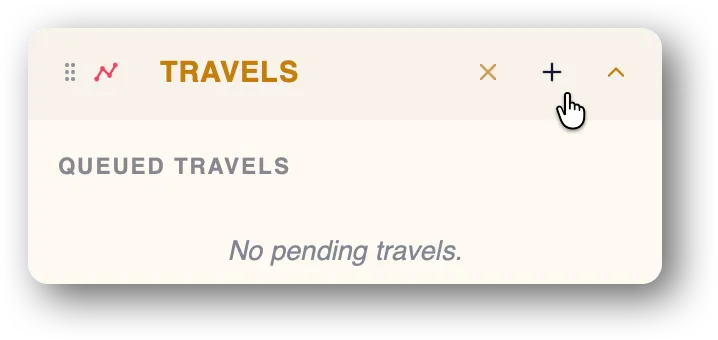
In Auto mode, Travel requests sidebar section, click + to create a new travel request.
Fields
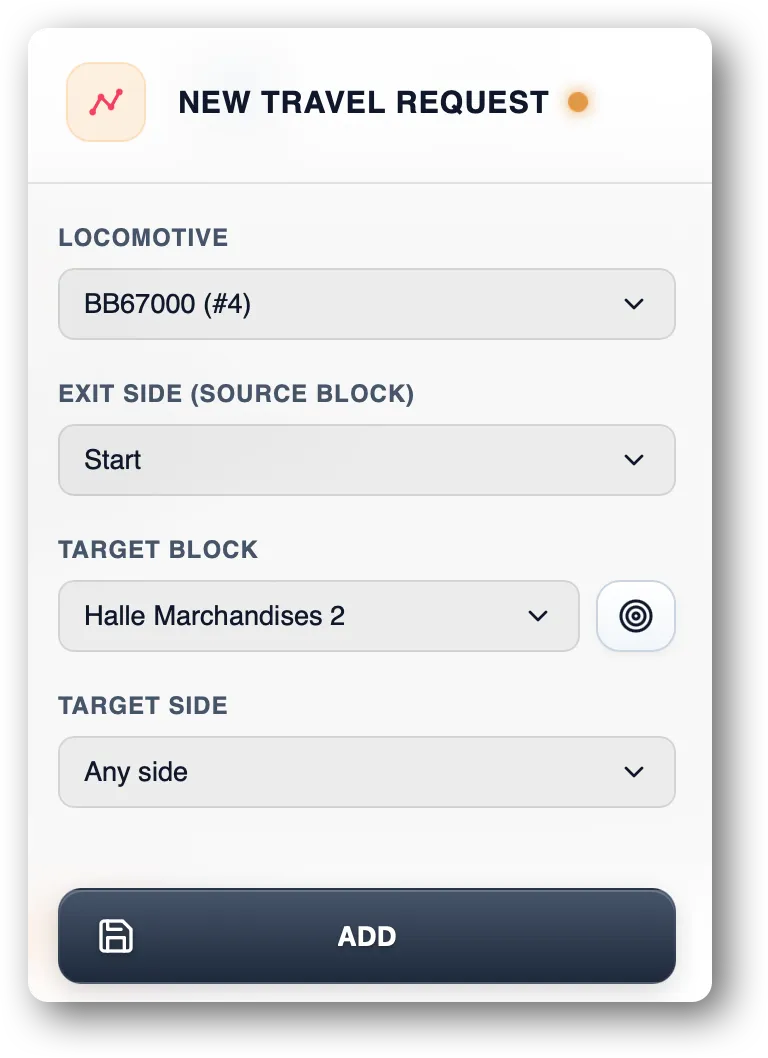
- Locomotive — the locomotive to route.
- Target block — the destination. The list shows every block in the project.
- Exit side (optional) — which side the loco should leave its starting block from. Useful when the loco could go in either direction.
- Target side (optional) — which side the loco should enter the target block from.
Sides left blank
If you don’t pick sides, the supervisor picks the one that yields the shortest travel.
Submit
Click Create. Three possible outcomes:
- Route found immediately — the request enters the queue and execution starts as soon as a free route is available.
- Route computed but blocked — the request stays in the queue, waiting for the required blocks to free up.
- No route possible — the request is rejected with an error message (block unreachable, loco wrongly oriented, network broken).
Queue
See Queue, active travels, history (coming soon).
Follow the travel
Once active, the travel is visible:
- in the active travels list,
- as coloured arrows on the canvas (see Travel visualisation (coming soon)),
Several travels in parallel
You can have several locomotives travelling at the same time, as long as none asks for a block already reserved by another. The supervisor queues conflicts in order of arrival.
Cancel
See Cancel a travel (coming soon).